Scan-to-Scene: Use Dynamic QR Codes to Open Exact Lighting Presets in Light Reference
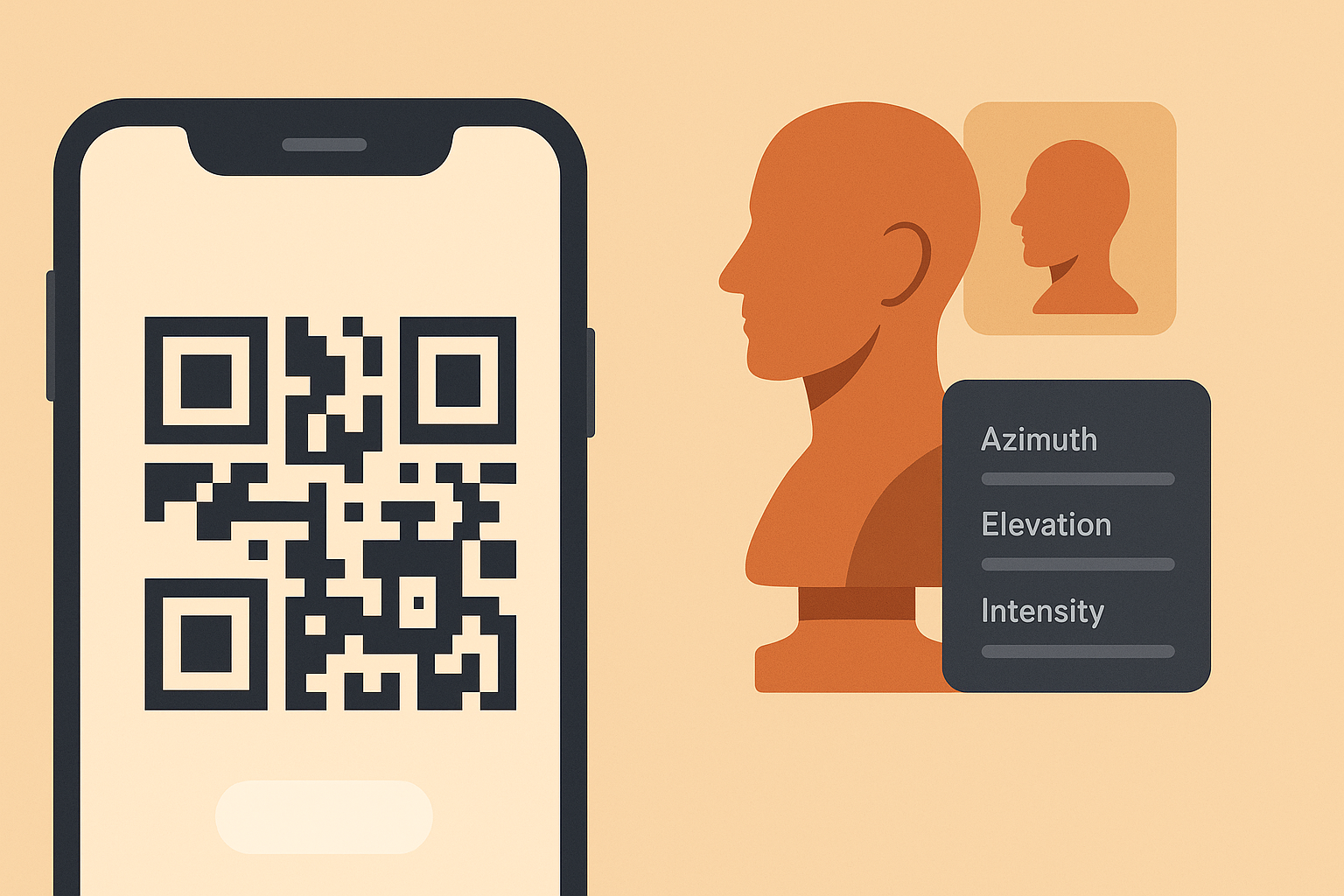
Frictionless practiceThe slowest part of any practice session is not the drawing—it is the setup. When you have to hunt for a URL, load the app, pick the subject, and recreate yesterday’s light from memory, your warmup bleeds away. Dynamic QR codes remove that friction. With a single scan, your phone or tablet opens a preconfigured Light Reference scene: azimuth, elevation, intensity, even temperature—exactly how you saved it. Tape the code to your desk mat or sketchbook and you have a one-tap entry to practice. Less fiddling, more reps.
Why Dynamic (Not Static) Codes Matter for Artists
A static QR code is locked forever to one destination. If you printed “Tuesday Warm Interior” last month and now your curriculum has evolved, that print is out of date. A dynamic QR code lets you update the destination anytime from your dashboard. Keep the same physical sticker or handout; change the scene behind it. That single advantage pays off immediately for classrooms, study groups, and anyone iterating weekly drills.
Create Your First “Scene Link” in Three Steps
- Save a preset in Light Reference. Set a baseline like 45° azimuth, 30° elevation, medium intensity, neutral temperature. Copy the shareable URL or the query params used by your app’s preset system.
- Create a dynamic QR in QR Scan Pro. Use a descriptive title (e.g., LR — Soft Daylight 30elev) and paste the preset URL as the destination.
- Print/export the code. Add a short label under the QR so you remember what it opens. Done. The next time you scan, you land straight in the scene and start drawing.
Weekly Study Stacks (The Classroom & Team Favorite)
Build a Monday–Friday strip of codes on a single sheet. Example:
- Mon — Soft daylight (cool key, 30° elevation)
- Tue — Warm interior (warm key, 20° elevation)
- Wed — Dramatic top light (neutral key, 65° elevation)
- Thu — Cool rim with low fill
- Fri — Mixed key + subtle rim
Students or teammates scan the day’s code, land in the same lighting, and you compare apples to apples. Feedback becomes specific: edge control under top light, cast shadow shape at low elevation, rim-light discipline, etc. Because your QR is dynamic, you can rotate Friday’s challenge scene monthly without reprinting.
Track Habits with UTM Parameters
Add labels to your destinations (e.g., ?utm_source=deskmat&utm_medium=print&utm_campaign=week3). In the QR Scan Pro analytics, you will see what gets used, when, and for how long. Patterns emerge: maybe Wednesday’s top light produces shorter sessions—good signal to simplify the subject or raise the fill. Maybe warm interior gets the most saves—double down with two variations next cycle. You are not guessing; you are measuring the real world.
Professional Kits for Events and Demos
Teaching at a workshop? Make a table-top tri-fold with three large QRs: “Cool Daylight,” “Warm Theatrical,” and “Rim-Heavy.” Attendees scan whichever matches the demo they want to follow. Back at home, the same printed piece is still valid because your codes are dynamic. Update the destinations to your newest presets and your tri-fold keeps working all year.
Mobile-First Practice
Light Reference runs great on phones when the controls are compact. A dynamic QR stuck to your notebook means ten-minute drills are viable between meetings: scan, draw, done. If your palette choices come from a color tool, load those tokens first (or keep a second QR for your palette reference). Practice becomes a habit because it is fast.
Best Practices for QR Placement
- Use high contrast: dark code on light background, or vice versa. Avoid glossy laminates that reflect light.
- Give the code breathing room (quiet zone) so cameras focus quickly.
- Print at least 0.8–1.0 inches square for desk stickers; larger for posters.
- Label each code with the preset name and a tiny hint (e.g., “30° elev / cool key / medium intensity”).
Try This 15-Minute Setup
- Create three Light Reference presets you actually want to draw this week.
- Make three dynamic QR codes (one per preset) with descriptive names and UTM tags.
- Print a small strip, tape it under your monitor, and start scanning.
Pro tip: Keep one extra dynamic code labeled “Today’s Challenge.” Point it to whatever scene you are avoiding. Change it daily from the dashboard without touching the paper.
Helpful link: Light Reference website